mirror of
https://github.com/ynput/ayon-core.git
synced 2025-12-24 21:04:40 +01:00
| .. | ||
| api | ||
| hooks | ||
| otio | ||
| plugins | ||
| utility_scripts | ||
| __init__.py | ||
| addon.py | ||
| README.markdown | ||
| RESOLVE_API_v19.0B-build20.txt | ||
| startup.py | ||
| utils.py | ||
| version.py | ||

Basic setup
- Actually supported version is up to v18
- install Python 3.6.2 (latest tested v17) or up to 3.9.13 (latest tested on v18)
- pip install PySide2:
- Python 3.9.*: open terminal and go to python.exe directory, then
python -m pip install PySide2
- Python 3.9.*: open terminal and go to python.exe directory, then
- pip install OpenTimelineIO:
- Python 3.9.*: open terminal and go to python.exe directory, then
python -m pip install OpenTimelineIO - Python 3.6: open terminal and go to python.exe directory, then
python -m pip install git+https://github.com/PixarAnimationStudios/OpenTimelineIO.git@5aa24fbe89d615448876948fe4b4900455c9a3e8and move built files from./Lib/site-packages/opentimelineio/cxx-libs/bin and libto./Lib/site-packages/opentimelineio/. I was building it on Win10 machine with Visual Studio Community 2019 and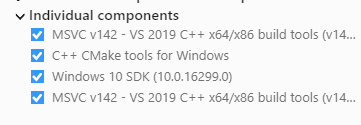 with installed CMake in PATH.
- Python 3.9.*: open terminal and go to python.exe directory, then
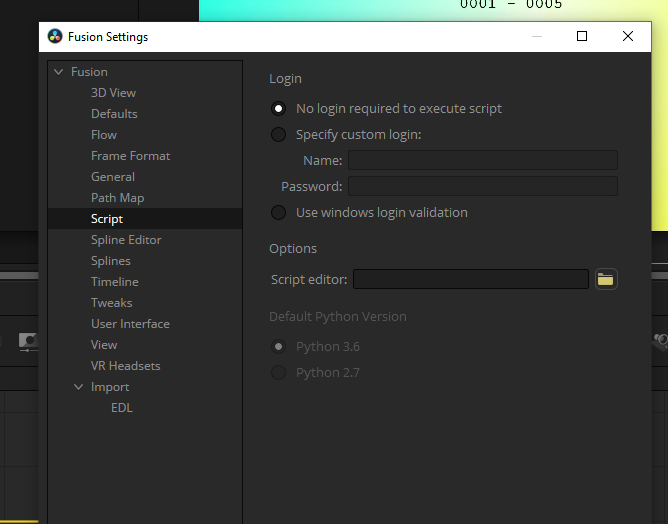
- make sure Resolve Fusion (Fusion Tab/menu/Fusion/Fusion Settings) is set to Python 3.6
- Open OpenPype Tray/Admin/Studio settings >
applications/resolve/environmentand add Python3 path toRESOLVE_PYTHON3_HOMEplatform related.
Editorial setup
This is how it looks on my testing project timeline
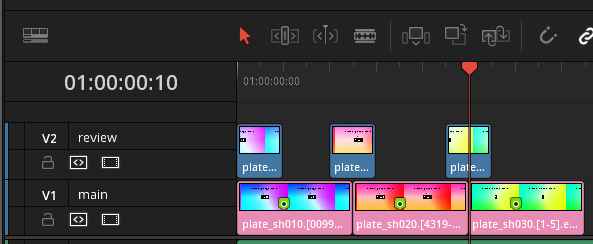 Notice I had renamed tracks to
 main (holding metadata markers) and review used for generating review data with ffmpeg confersion to jpg sequence.
- you need to start AYON menu from Resolve/EditTab/Menu/Workspace/Scripts/Comp/OpenPype_Menu
- then select any clips in
maintrack and change their color toChocolate - in OpenPype Menu select
Create - in Creator select
Create Publishable Clip [New](temporary name) - set
Rename clipsto True, Master Track tomainand Use review track toreviewas in picture
- after you hit
okall clips are colored topingand marked with openpype metadata tag - git
Publishon openpype menu and see that all had been collected correctly. That is the last step for now as rest is Work in progress. Next steps will follow.